How to do it
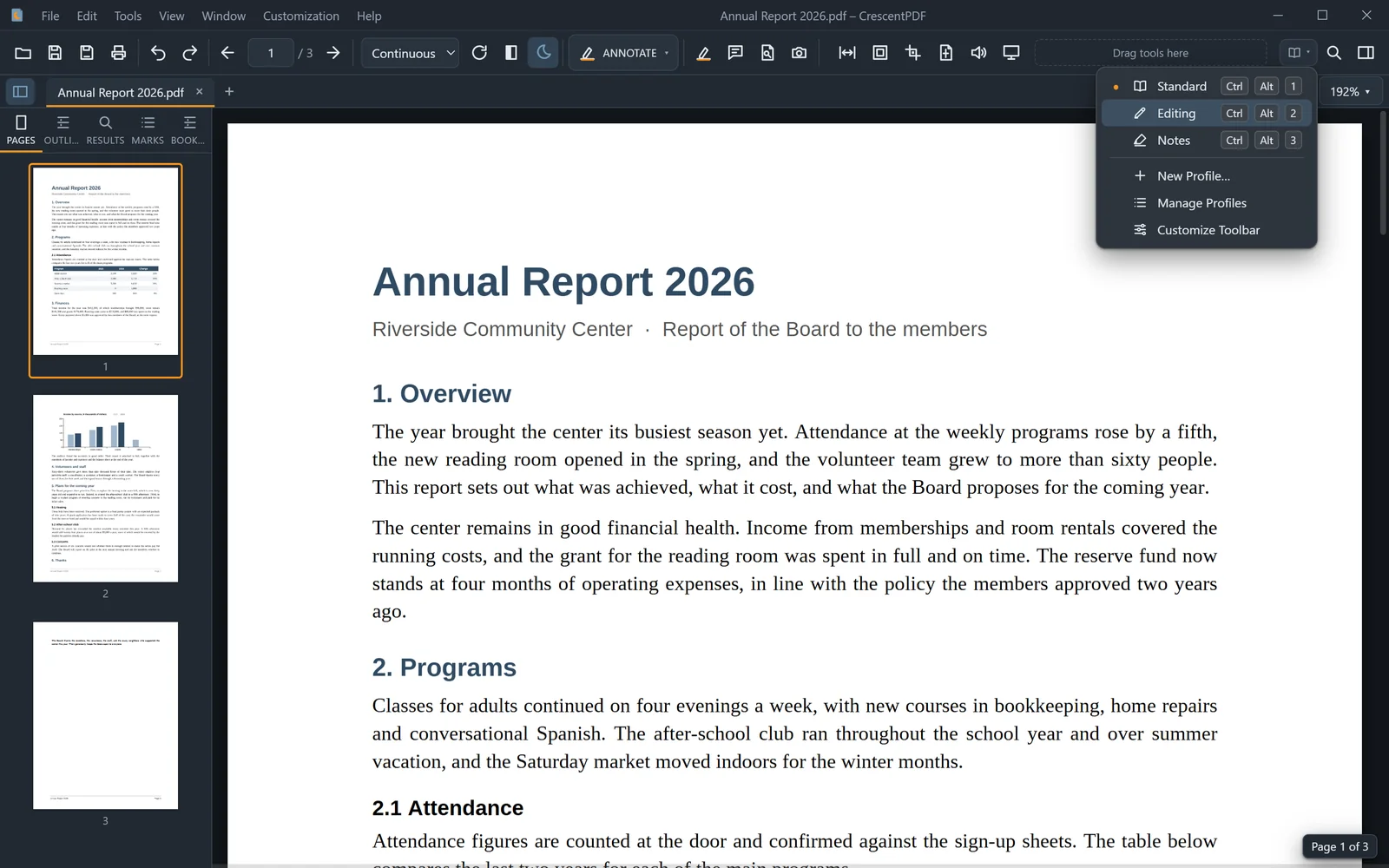
CrescentPDF comes with three toolbars, each set up for a different job. Switch in a click, or save your own.
- Use the small dropdown just before Find on the toolbar, or open Customization > Toolbar Profiles.
- Pick Standard for everyday reading, Editing for changing pages and text, or Notes for marking up.
- To keep a toolbar you've arranged, choose New Profile and give it a name.
- To rename, reset or delete your own, choose Manage Profiles.
 (opens full size in a new tab)